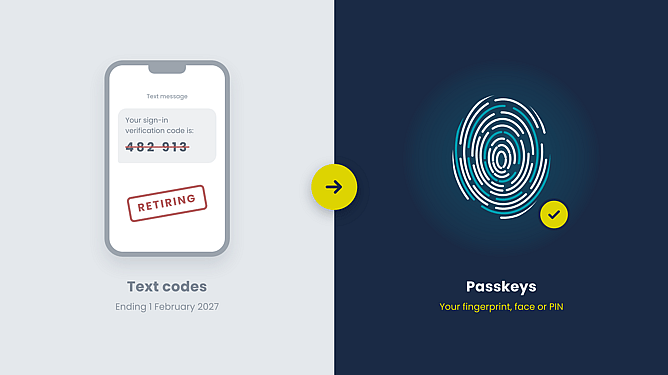
If you sign in to Microsoft 365 with a six-digit code sent by text or phone call, that option now has an expiry date. Microsoft is retiring SMS and voice authentication for work accounts from 1 February 2027. After that, anyone who still relies on a text code gets stopped at sign-in and has to set up a passkey before they can carry on.
What's changing with Microsoft SMS authentication
1 September 2026: passkeys became the default sign-in method. Anyone set up for SMS or voice codes started seeing prompts to register a passkey.
1 February 2027: Microsoft stops sending SMS and voice codes for most users. If a text or call is someone's only sign-in method, they'll have to register a passkey before they can get in.
1 July 2027: the same change applies to Global Administrators and external users.
There's no opt-out for the February deadline. Businesses with a genuine regulatory need can keep SMS through a third-party telecom provider, but that adds setup work and a cost per message.
Why text codes are on the way out
For years, a code by text felt secure enough. The trouble is that codes can be intercepted or handed over. Scammers talk people into reading a code out over the phone, build fake login pages that capture it as it's typed, or take over someone's phone number with a SIM swap.
It's a familiar pattern. As we've covered before, cyber attacks don't break in, they get let in. Microsoft's own guidance now says SMS and voice are "no longer positioned as secure authentication methods", while passkeys are resistant to phishing, SIM-swap and replay attacks.
So what is a passkey?
A passkey swaps the code for something already on your device: your fingerprint, your face or your PIN. There's nothing to remember and nothing to type.
Behind the scenes, your device holds a secure key that never leaves it, and that key only works with the genuine site it was made for. A fake login page can't trick it, and there's no code for a scammer to ask you for.
There are two main types:
Synced passkeys are saved to iCloud Keychain or Google Password Manager, so they follow you across your devices.
Device-bound passkeys live in one place, like the Microsoft Authenticator app, Windows Hello or a physical security key.
Our recommendation is to switch passkeys on wherever you can. They're a simpler way to sign in and a much harder one to fake.

How to get your team ready before February
Microsoft runs the platform, but who gets into your Microsoft 365 is still your call. A few steps now will save a lot of locked-out staff later:
Find out who's still on text codes. Your IT admin can run a report in Microsoft Entra to see which users are phone-only.
Give everyone a passkey before the deadline. Most staff can set one up on their phone in a couple of minutes.
Plan for the tricky cases. Shared computers, and staff without a work phone, may need a physical security key instead.
Sort out recovery. Decide what happens when someone loses or replaces their phone, so they're not stuck.
Tell your team what's coming. A heads-up before the prompt appears saves a flood of "is this a scam?" questions.
And don't leave it until the last week of January. Between the holidays and staff leave, the window is shorter than it looks.
Need a hand making the switch?
Satori is a Microsoft Partner based in Mount Maunganui. If you'd like us to check where your business stands, or you have questions about setting up passkeys for your team, we're happy to talk it through.
Get in touch with the Satori team or find out more about our managed IT services.